Custom Domains
Use your own domain instead of the default Konstantly subdomain
Overview
Use your own domain (like learn.yourcompany.com) instead of the default Konstantly subdomain. Custom domains are available on Business and Enterprise plans.
Requirements
Before setting up a custom domain, ensure you have:
- Business or Enterprise plan — Custom domains are not available on free or Team plans
- Access to your domain's DNS settings — You'll need to add a CNAME record at your domain registrar
Step-by-Step Setup
Step 1: Open Custom Domain Settings
- Log in to your Konstantly account
- Go to your instance dashboard
- Click Custom Domain in the instance actions
Step 2: Enter Your Domain
- Enter the domain you want to use (e.g.,
learn.yourcompany.com) - Click Continue
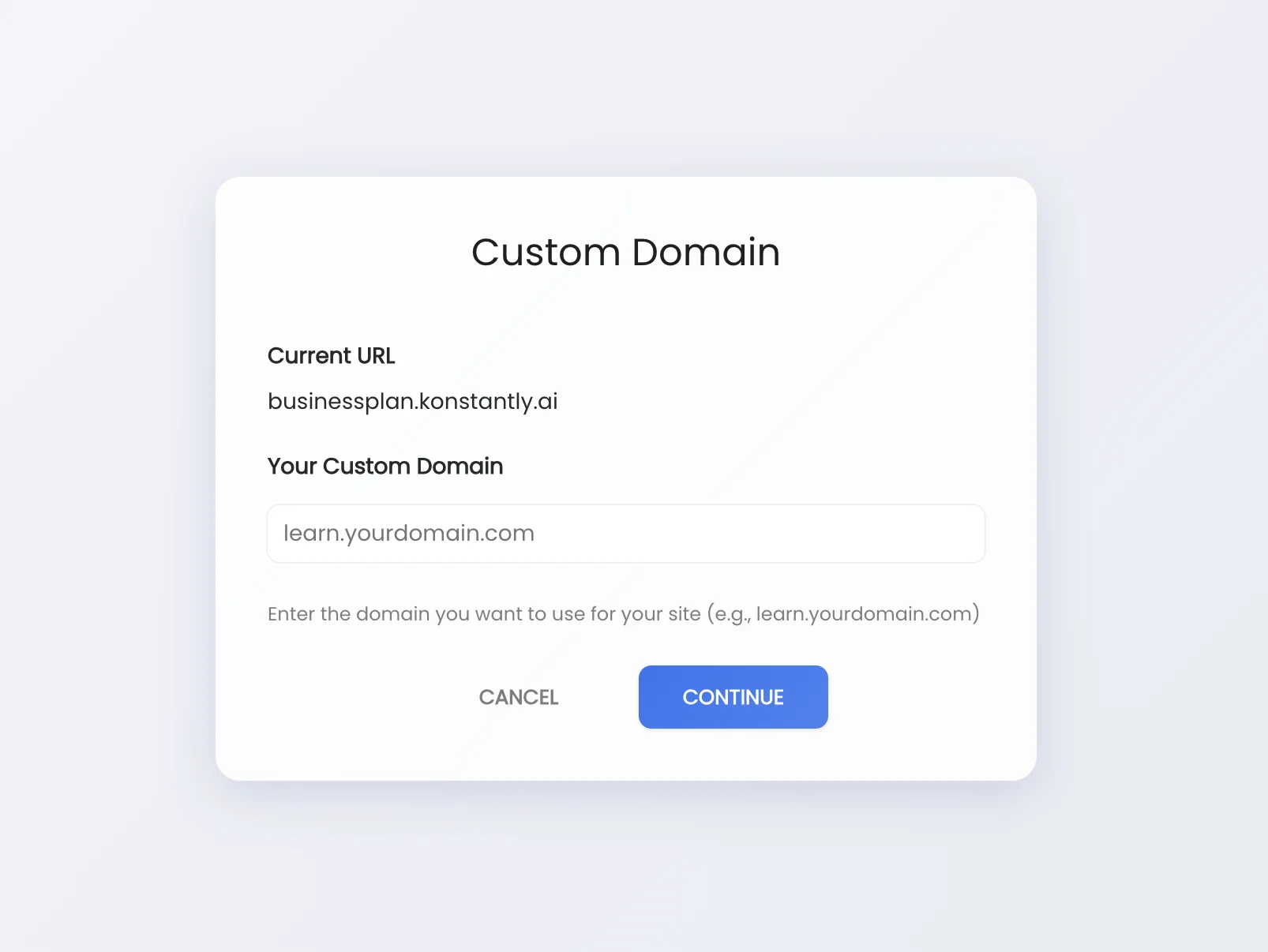
learn, training, or academy. Examples: learn.yourcompany.com, training.acme.org, academy.example.comStep 3: Configure DNS
Add a CNAME record at your domain registrar with the following settings:
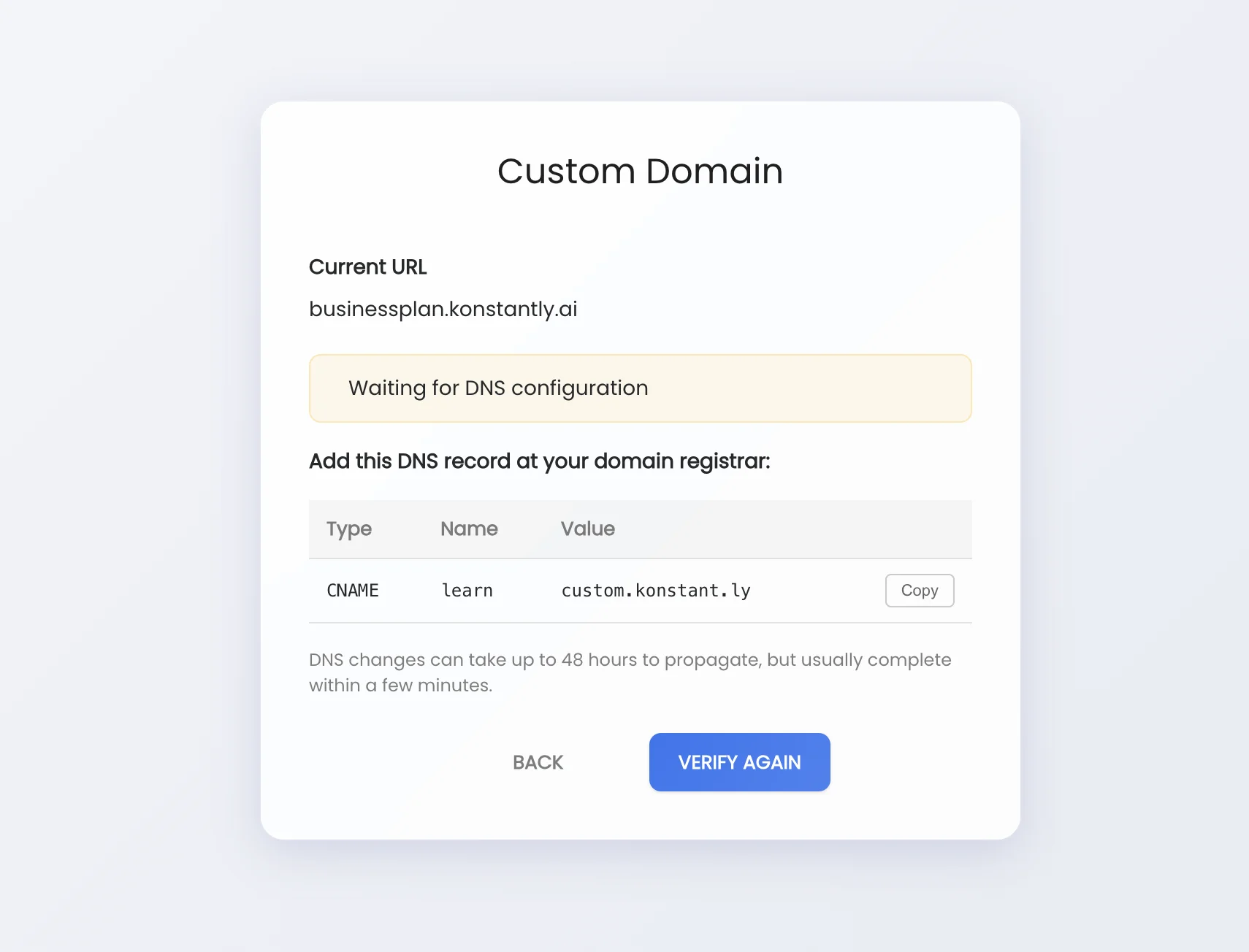
| Setting | Value |
|---|---|
| Type | CNAME |
| Name/Host | Your subdomain (e.g., learn) |
| Value/Points to | custom.konstant.ly |
| TTL | 3600 (or default) |
Common DNS Providers:
- GoDaddy: DNS Management → Add Record → CNAME
- Cloudflare: DNS → Add record → CNAME
- Namecheap: Domain List → Manage → Advanced DNS → Add New Record
- Google Domains: DNS → Custom records → Create new record
Step 4: Verify Your Domain
- After adding the DNS record, return to Konstantly
- Click Verify Domain
- If successful, your custom domain is now active
DNS Propagation
DNS changes can take time to propagate across the internet:
- Usually: 5-30 minutes
- Maximum: Up to 48 hours (rare)
If verification fails, wait a few minutes and try again.
Troubleshooting
"DNS not configured yet"
Possible causes:
- DNS hasn't propagated yet — wait 15-30 minutes and retry
- CNAME record has a typo — double-check the value is exactly
custom.konstant.ly - Wrong record type — make sure it's a CNAME, not an A record
How to verify your DNS:
You can check if your DNS is configured correctly using online tools like DNS Checker or MX Toolbox. Enter your domain and verify it shows custom.konstant.ly as the CNAME target.
SSL Certificate Errors
After setting up your custom domain, SSL certificates are automatically provisioned. This usually takes 1-5 minutes. If you see SSL errors:
- Wait a few minutes for the certificate to be issued
- Clear your browser cache
- Try accessing your site in an incognito/private window
Old Domain Still Shows
Your old Konstantly subdomain will automatically redirect to your new custom domain. If you're still seeing the old URL:
- Clear your browser cache
- Wait for your browser's DNS cache to expire
- Try a different browser or incognito mode
Removing a Custom Domain
To remove your custom domain and return to the default Konstantly subdomain:
- Open the Custom Domain popup
- Click Remove custom domain
- Confirm the removal
Your site will immediately be accessible at the original subdomain (e.g., yoursite.konstant.ly).
FAQ
Can I use a root domain (like yourcompany.com)?
We recommend using a subdomain (like learn.yourcompany.com) because:
- CNAME records work best with subdomains
- Root domains require A records which can't point to our load balancer
- Subdomains are more flexible and easier to manage
Can I use multiple custom domains?
Currently, each Konstantly instance supports one custom domain. If you need multiple domains, contact our support team.
Will my custom domain work with HTTPS?
Yes. SSL certificates are automatically provisioned for your custom domain using Let's Encrypt. Your site will be fully secured with HTTPS.
What happens to links using my old domain?
Links using your old Konstantly subdomain (e.g., yoursite.konstant.ly) will automatically redirect to your new custom domain.
Can I change my custom domain later?
Yes, you can remove your current custom domain and set up a new one at any time. Follow the same setup process with your new domain.