How to Convert a PowerPoint into an Online Course
Most training already exists as a PowerPoint deck. Here's how to turn one into a trackable online course, and what actually needs a touch-up pass afterward.

If you already have training material, there's a good chance it's a PowerPoint deck someone built years ago and everyone's been emailing around since. It's one of the most common first things new Konstantly customers upload, and for good reason: a slide deck is usually 80% of a course already. It has structure, it has content, it's just not trackable, assignable, or quizzable in its current form.
Here's how the conversion actually works, and where it needs a human pass afterward.
The steps
1. Upload the deck
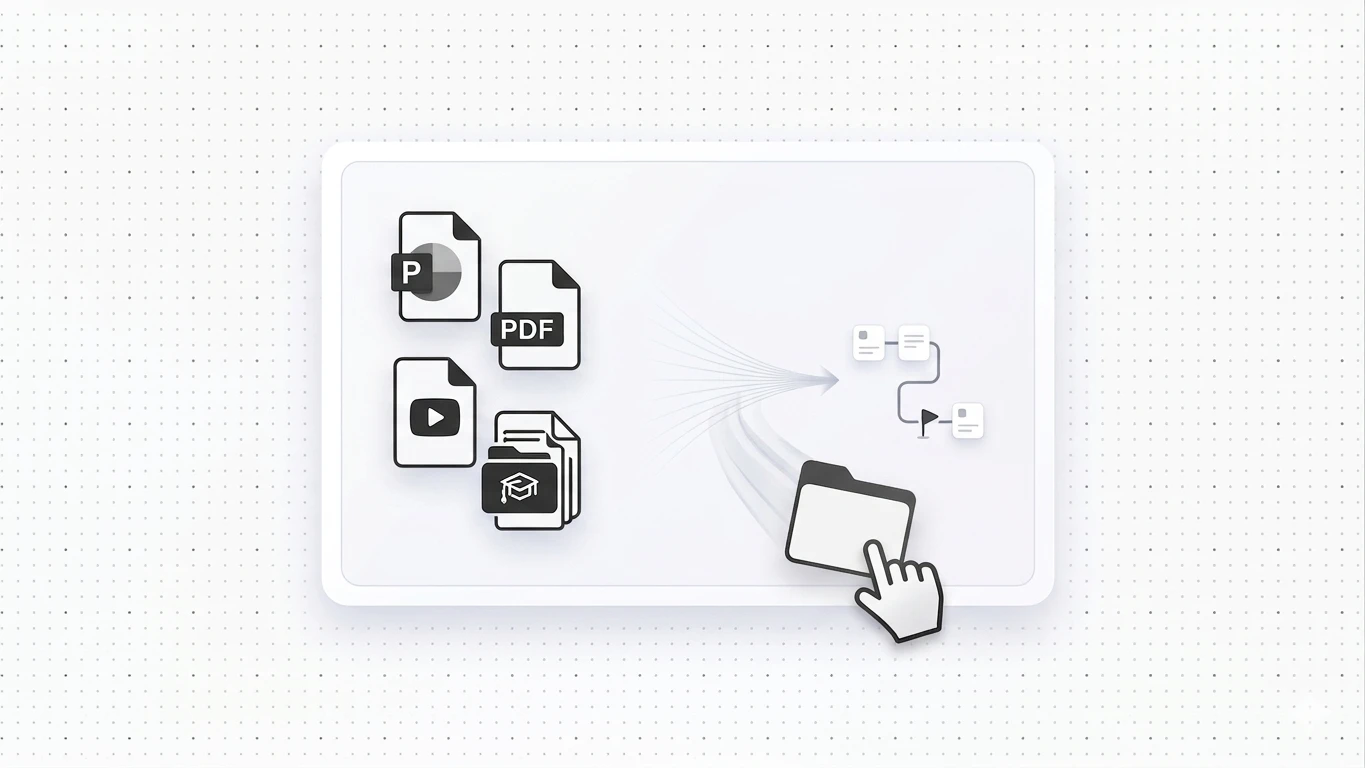
Drop the .pptx file into the AI course assistant. No reformatting or cleanup required beforehand, upload it as-is.
2. AI converts slide structure into lesson content
Slide text and structure become lesson pages: a slide typically becomes a lesson section, with the on-slide text carried into the lesson body. Dense, text-heavy slides usually get split across multiple lesson pages, since a wall of bullet points that worked as a presentation aid doesn't read well as standalone lesson content.
3. A quiz gets drafted from the material
Based on the converted content, a quiz is generated to check comprehension, rather than you writing questions from scratch.
4. Review and touch up
This is the step to budget real time for. What typically needs attention:
- Animations and slide transitions don't carry over. If a slide's meaning depended on a build-in animation or reveal order, that context needs to be rewritten as static text.
- Embedded or linked videos need to be re-added. Video references inside a deck don't always survive conversion cleanly, check and re-link any video content.
- Dense slides need editing, not just splitting. A slide built to be talked over by a live presenter often reads as incomplete on its own; add the context a presenter would have supplied verbally.
- Brand theming and custom design don't transfer. Colors, fonts, and custom layouts need to be reapplied in the course builder rather than expecting a 1:1 visual match.
- Speaker notes are a good source, not an automatic import. If your real content lives in the speaker notes rather than the slides themselves, review whether that context needs to be pulled into the lesson body manually.
5. Publish and assign
Once the touch-up pass is done, publish and set up auto-enrollment by group or role, same as any other course.
What this is good for, and what it isn't
This flow is strong for decks that already function as structured training: onboarding presentations, policy walkthroughs, product training decks. It's a weaker starting point for decks that were built purely as visual aids for a live talk, where most of the actual content lived in what the presenter said out loud rather than on the slide. In that case, expect a heavier rewrite pass, not just formatting cleanup.
For the broader AI course-creation flow beyond PowerPoint specifically, see our step-by-step guide to creating a course with AI.
Try it with a real deck
The fastest way to know how well this works for your content specifically: start a free account, no credit card, and upload one real deck you already have. You'll see exactly what converts cleanly and what needs a pass before you commit to converting your whole library.
FAQ
Will my PowerPoint animations and transitions show up in the course?
No. Animations and transitions are presentation-layer effects that don't carry into lesson content. If a slide's meaning depended on one, rewrite that context as plain text during the review step.
Do embedded videos in my deck convert automatically?
Video references don't always survive the conversion cleanly. Check each video after conversion and re-link or re-upload as needed.
How much editing should I actually expect to do?
Depends on the deck. A well-structured training deck with clear per-slide content might need light editing. A deck built purely as a visual aid for a live presenter usually needs a heavier rewrite, since much of the real content lived in what was said aloud, not on the slide.
Does this work with Google Slides or Keynote files too?
Export to .pptx format first for the most reliable conversion.