Creating Surveys
Create and configure surveys with matrix questions and essay responses
What is a Survey?
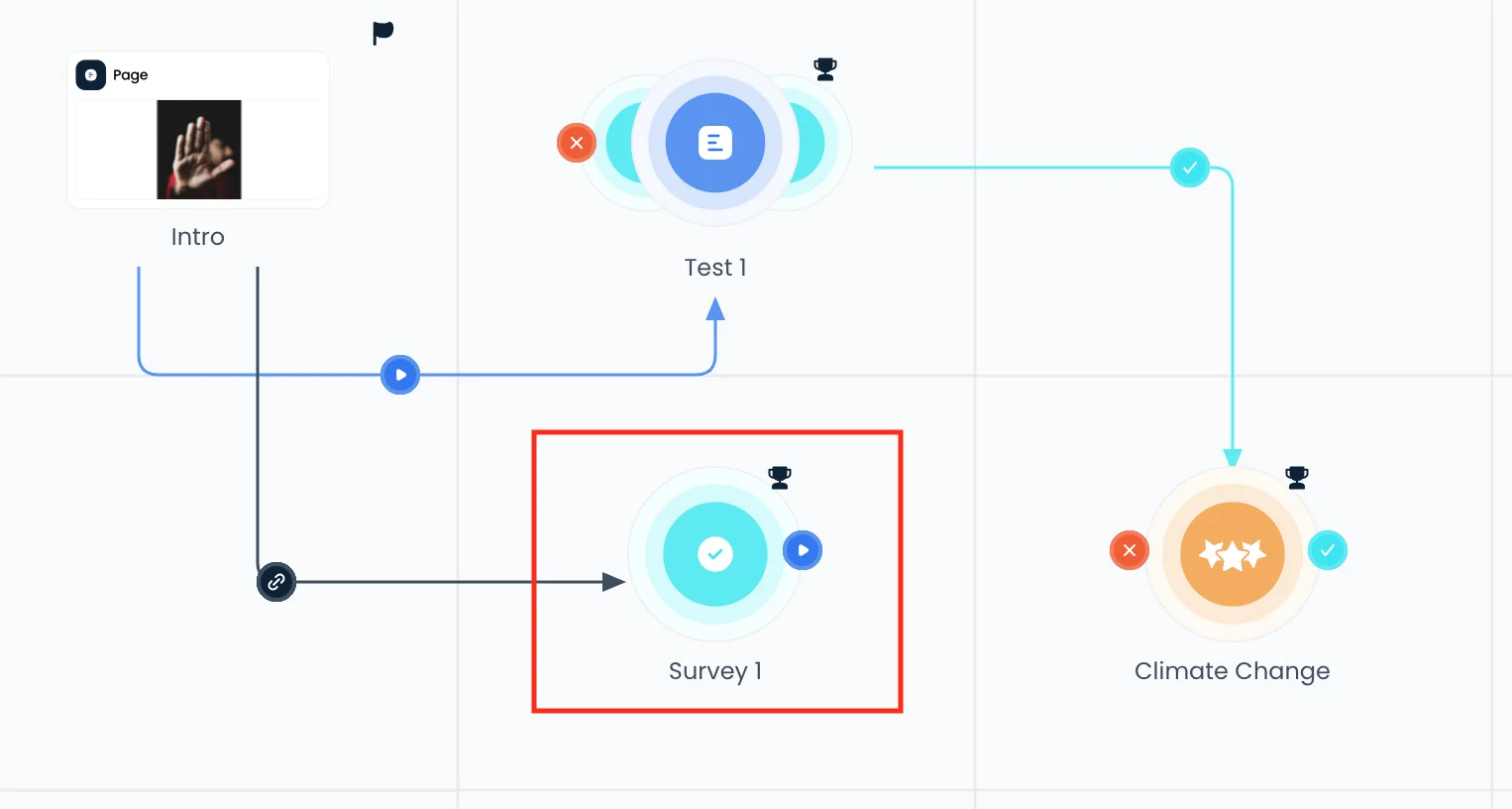
Unlike tests, surveys do not have right or wrong answers. They are used to gather learners' opinions, feedback, and subjective responses about course content or any other topic.
Surveys compared with tests
| Feature | Survey | Test |
|---|---|---|
| Purpose | Collect feedback | Assess knowledge |
| Grading | No scores | Scored and tracked |
| Correct answers | None defined | Required |
| Passing criteria | None | A passing score you set |
| Use case | Opinions, feedback, preferences | Knowledge checks, certifications |
Creating a survey
- In the course builder, click Add step and pick Survey (in a branching course, drag it onto the course map)
- Click the element to open the survey editor
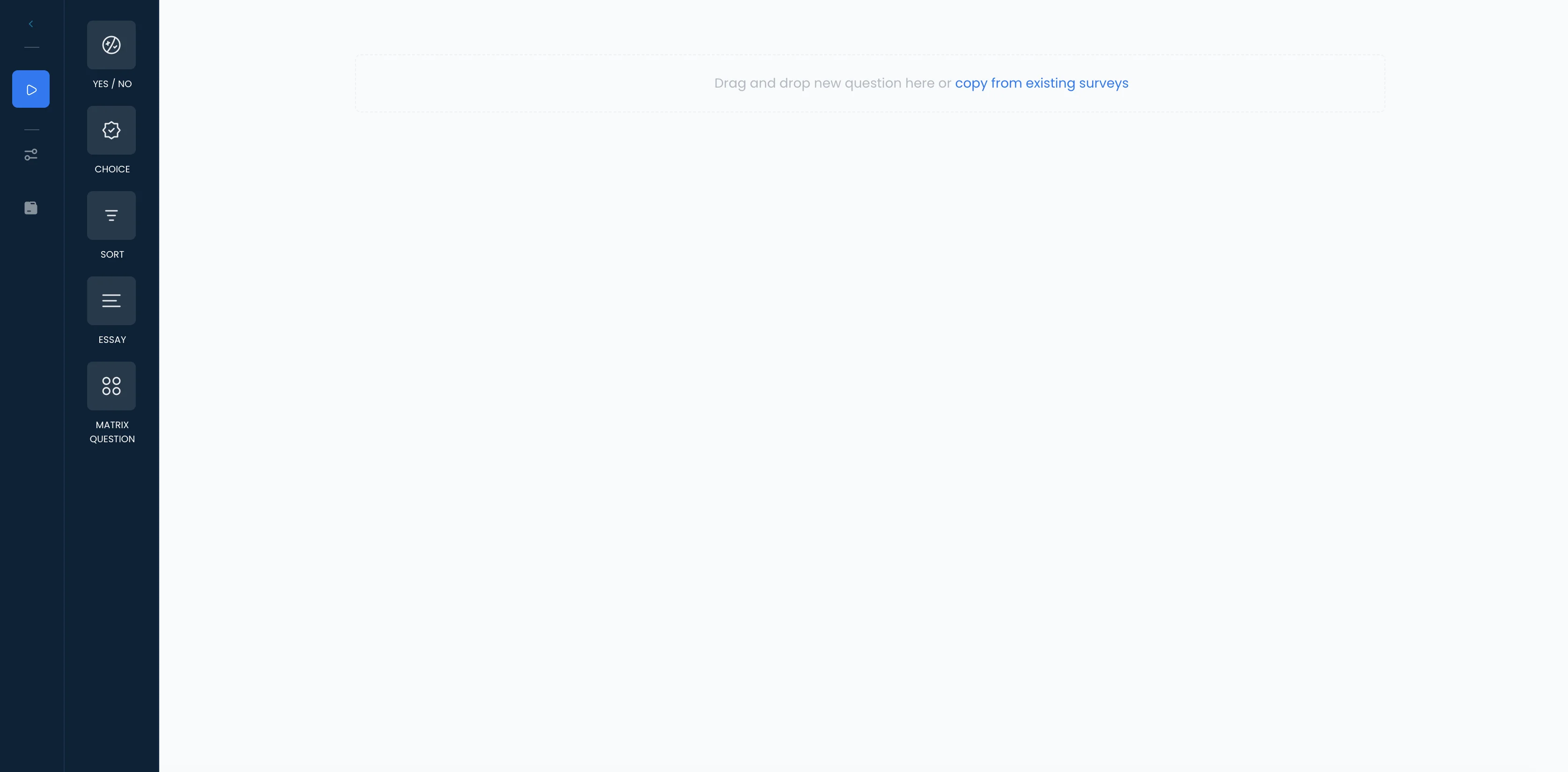
- Add questions from the list on the left, or open the Ask tab and ask Konstantly to write them
- Open the Settings tab of the side panel to configure the survey, and click Save settings when you are done
The survey editor looks and works like the test editor: the questions are a list on the left, the question you are editing sits in the middle, and Ask and Settings share the side panel.
Survey Question Types
Surveys support all the same question types as tests, plus two additional types specifically designed for gathering feedback:
Matrix Question
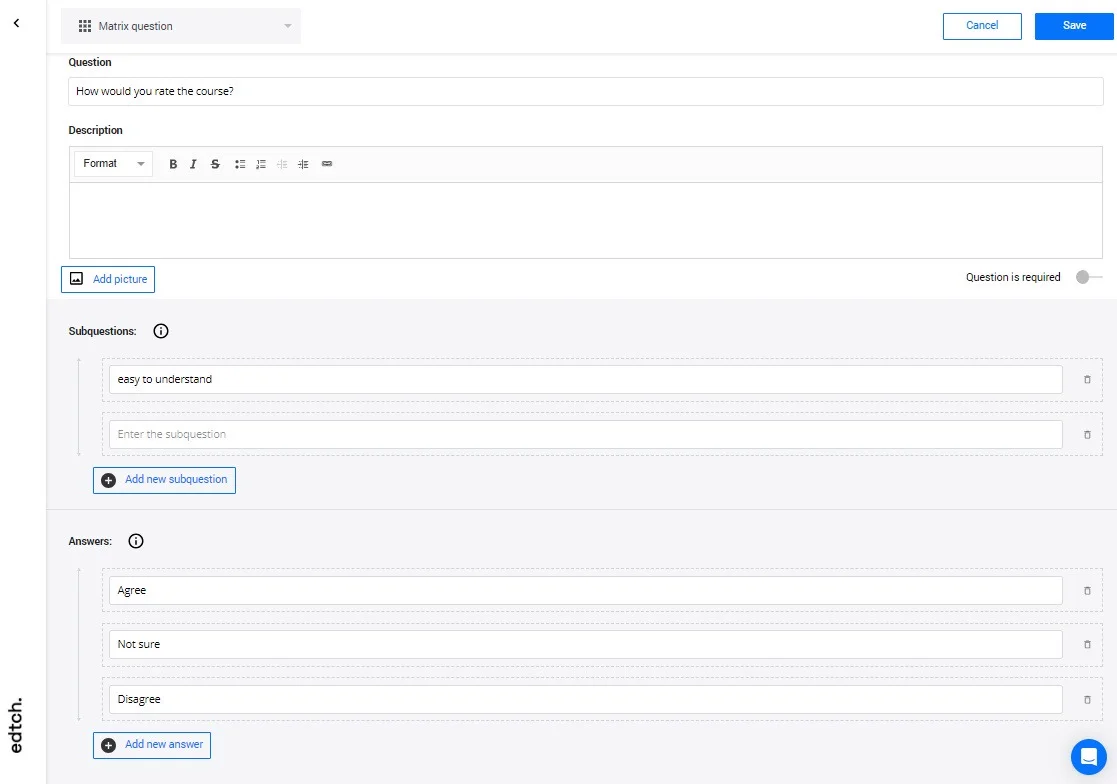
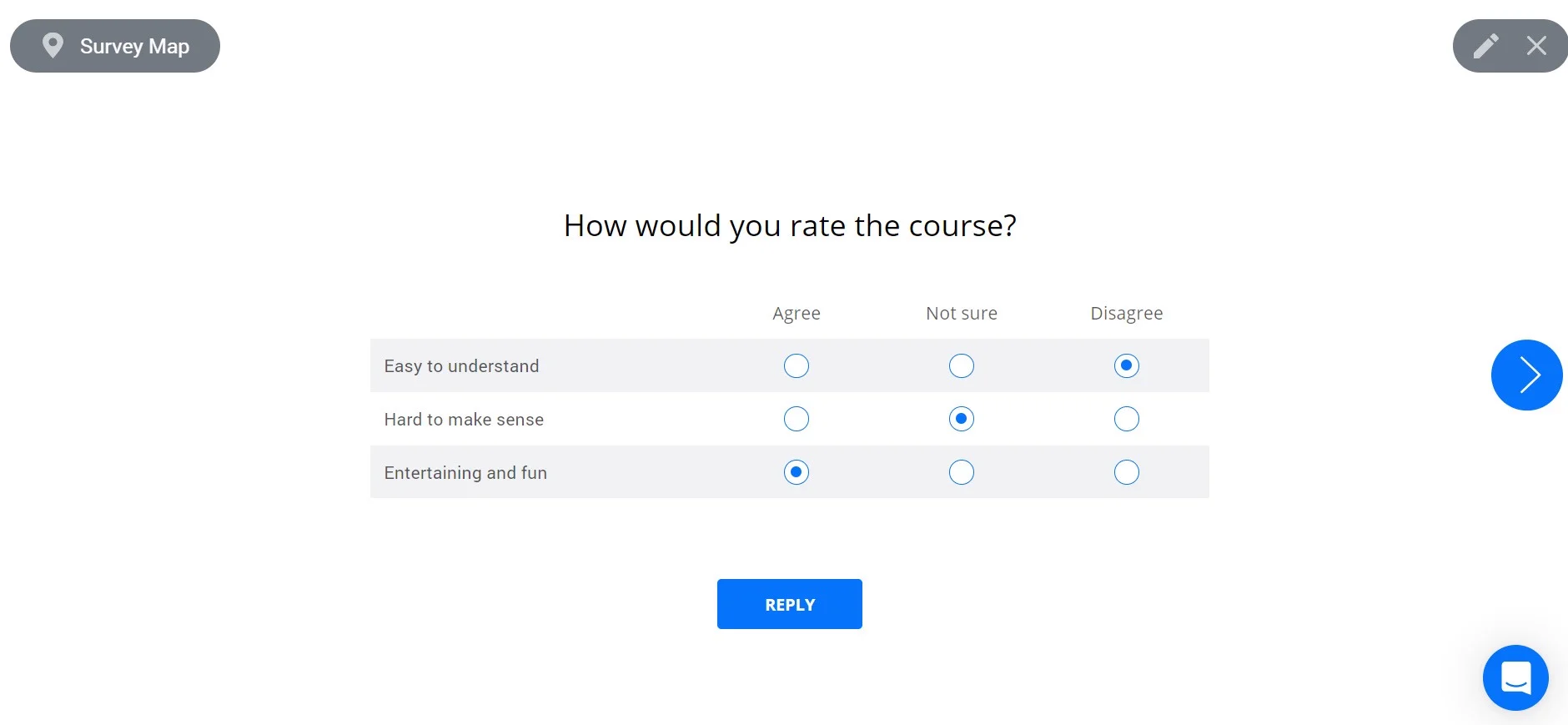
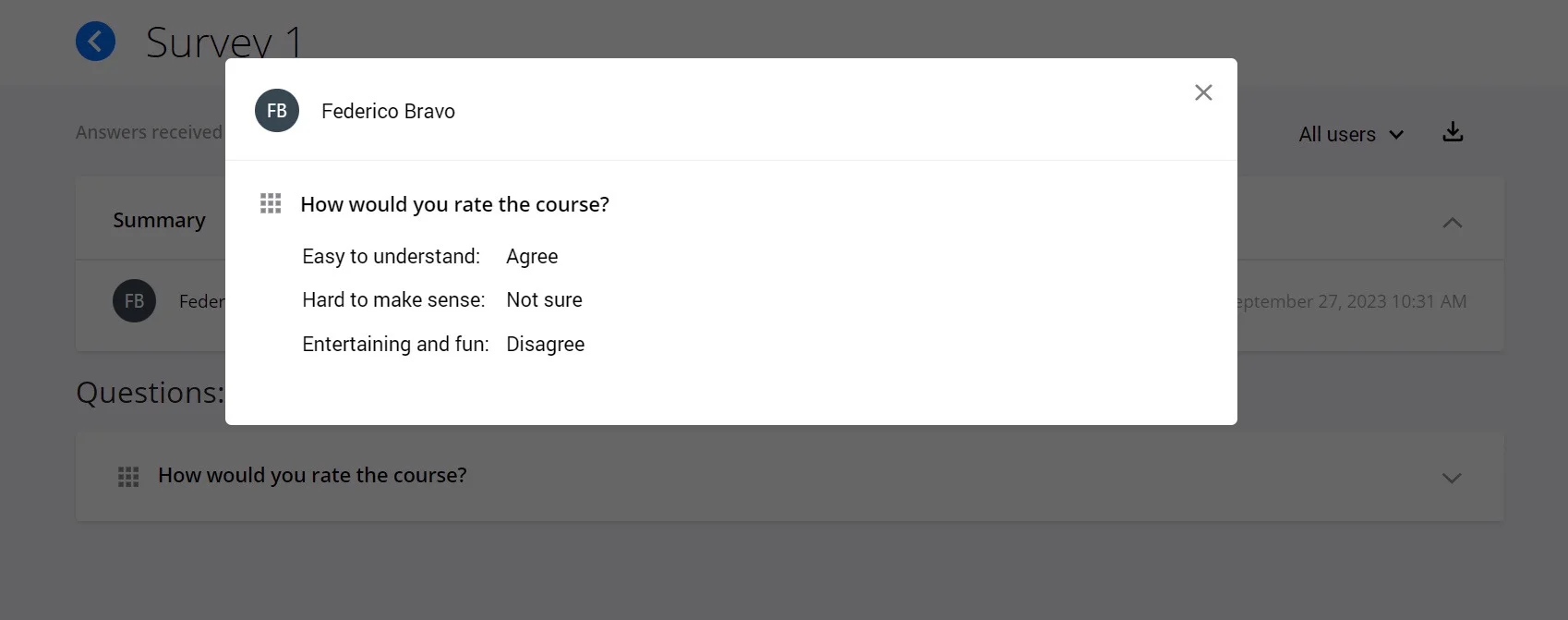
Matrix questions allow learners to rate multiple items using the same scale. This is ideal for collecting structured feedback on related topics.
Features:
- Add multiple rows (items to be rated)
- Define column headers (rating scale)
- Learners select one option per row
- Great for satisfaction surveys and evaluations
Essay Question
Essay questions provide learners with a text area to write detailed, free-form responses.
Use cases:
- Open-ended feedback
- Detailed opinions or suggestions
- Reflection exercises
- Course improvement ideas
How Surveys Look to Learners
When learners take a survey, they see a clean interface that makes it easy to provide their feedback.
Making Questions Mandatory
You can make specific survey questions required to ensure you collect all the feedback you need.
How to make a question mandatory:
- Select the question in your survey
- Check the "Mandatory" option in question settings
- Learners cannot submit the survey without answering mandatory questions
Viewing Survey Results
Overall Statistics
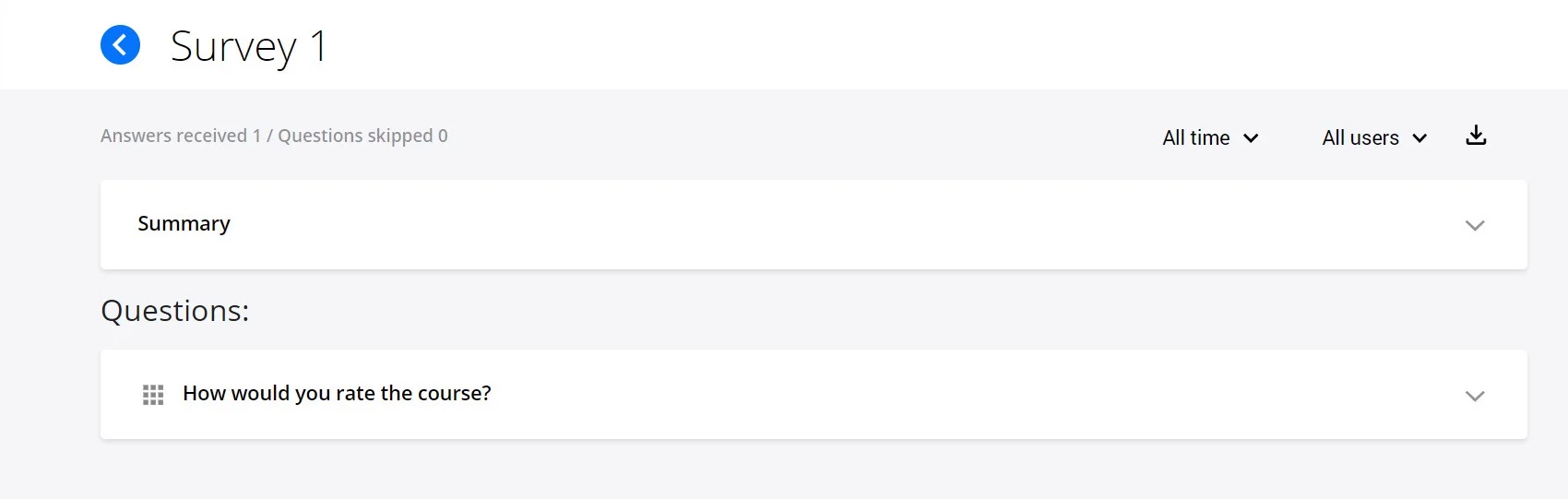
Access aggregated results to see response patterns across all learners.

Detailed Analytics
View detailed breakdowns of responses, including:
- Response percentages for each option
- Distribution charts
- Trends over time
Individual Responses
Review individual learner responses to understand specific feedback and identify common themes.
Best Practices
- Keep it concise: Shorter surveys have higher completion rates
- Use clear language: Make questions easy to understand
- Mix question types: Combine scales, multiple choice, and essays for comprehensive feedback
- Make it anonymous: Consider whether you need to track individual responses
- Test before deploying: Preview your survey from the learner's perspective
Related Topics
- Creating Questions - Understand all question types available
- Creating Tests - Build scored assessments
- Course Statistics - View aggregated survey results