Customizing the Interface
Personalize the Konstantly interface with your brand identity
Branding Overview
To create a more welcoming environment for learners and strengthen your brand identity, you have the option to personalize the Konstantly interface to match your organization's image. This includes the ability to replace the standard Konstantly logo and background image with custom alternatives.
Additionally, for more extensive customization, feel free to inform us of your specific requirements, such as a custom domain name, favicon, tagline, title, and more, and we'll accommodate your requests.
Accessing Branding Settings
To change the branding, open the "Settings" tab, and click "Branding". Both the logo and the background image can be changed here.
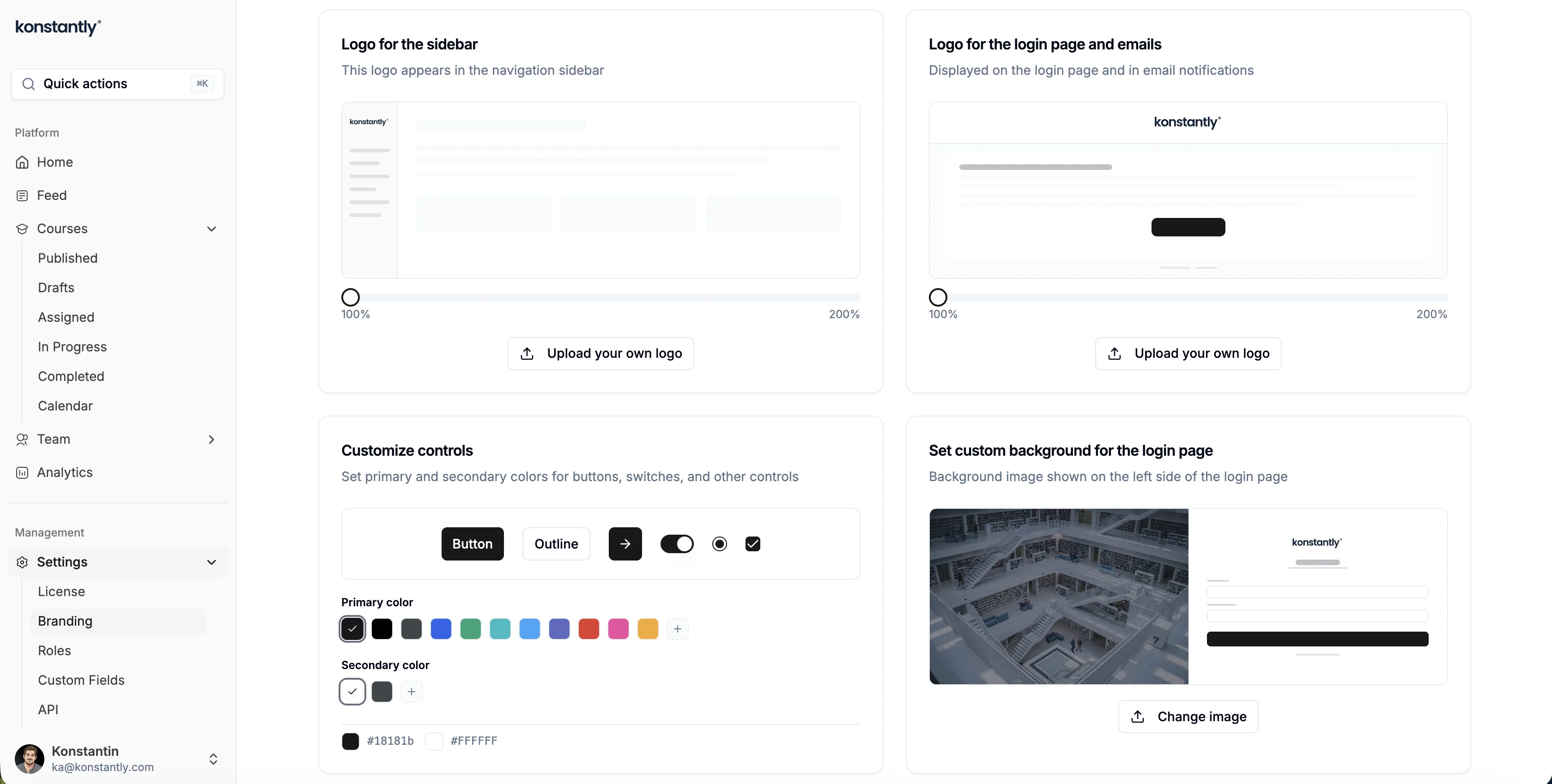
Customizable Elements
Logo for Sidebar, Login Page, and Email
To change the logo, click Upload in the "Upload your own logo" section and select the image file containing the custom logo.
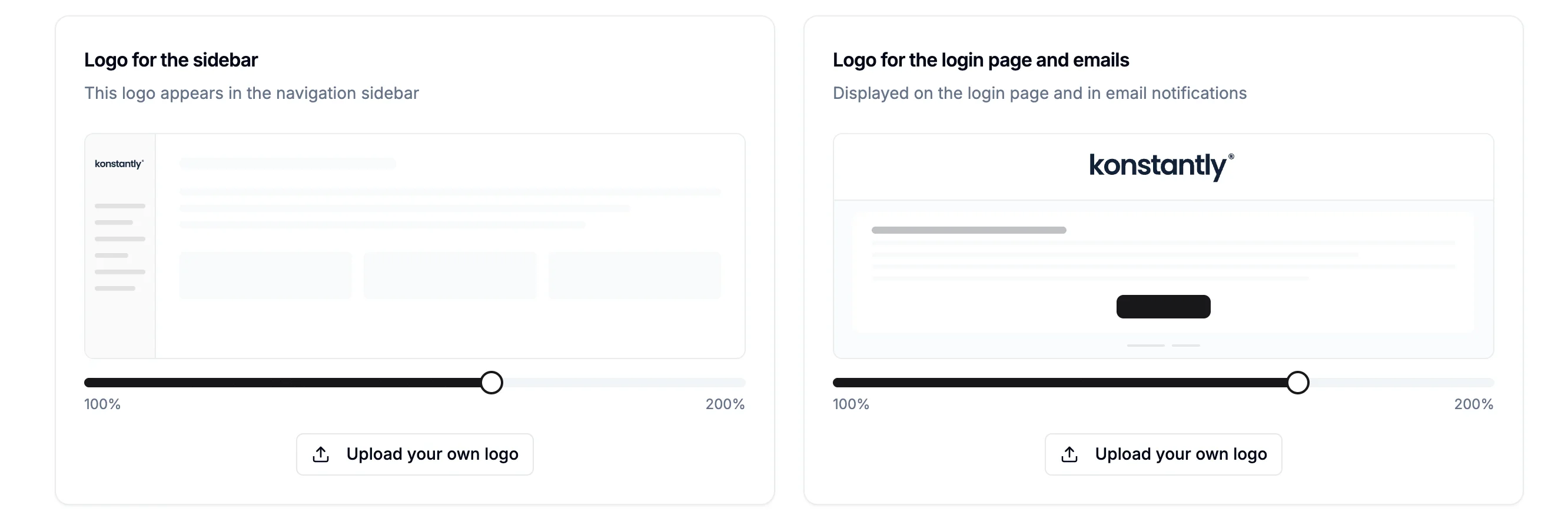
Logo Requirements:
- File format: PNG with transparent background
- Maximum dimensions: 100×60 pixels
- Works in both portrait and landscape orientations
- Avoid white colors (logo displays on white background)
- Use brighter colors for better visibility
Controls
Personalize the color scheme of control elements by selecting from the available options or entering the code for your corporate color from the palette. The button will be filled with the selected primary color, and the text or shape within it will take on the secondary color.
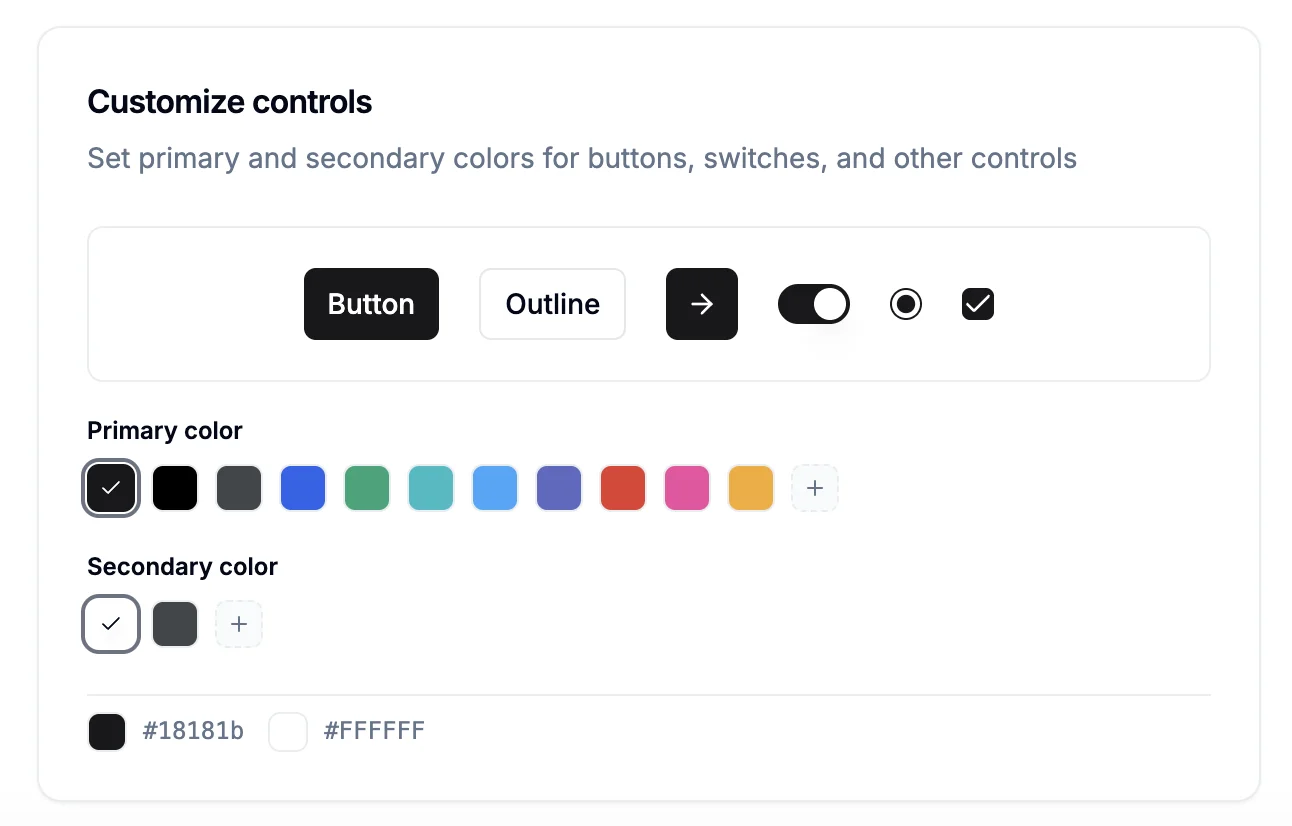
Color Customization:
- Primary color: Fills the button background
- Secondary color: Applies to text or shapes within buttons
- Choose from preset options or enter custom hex codes
- Use corporate colors to maintain brand consistency
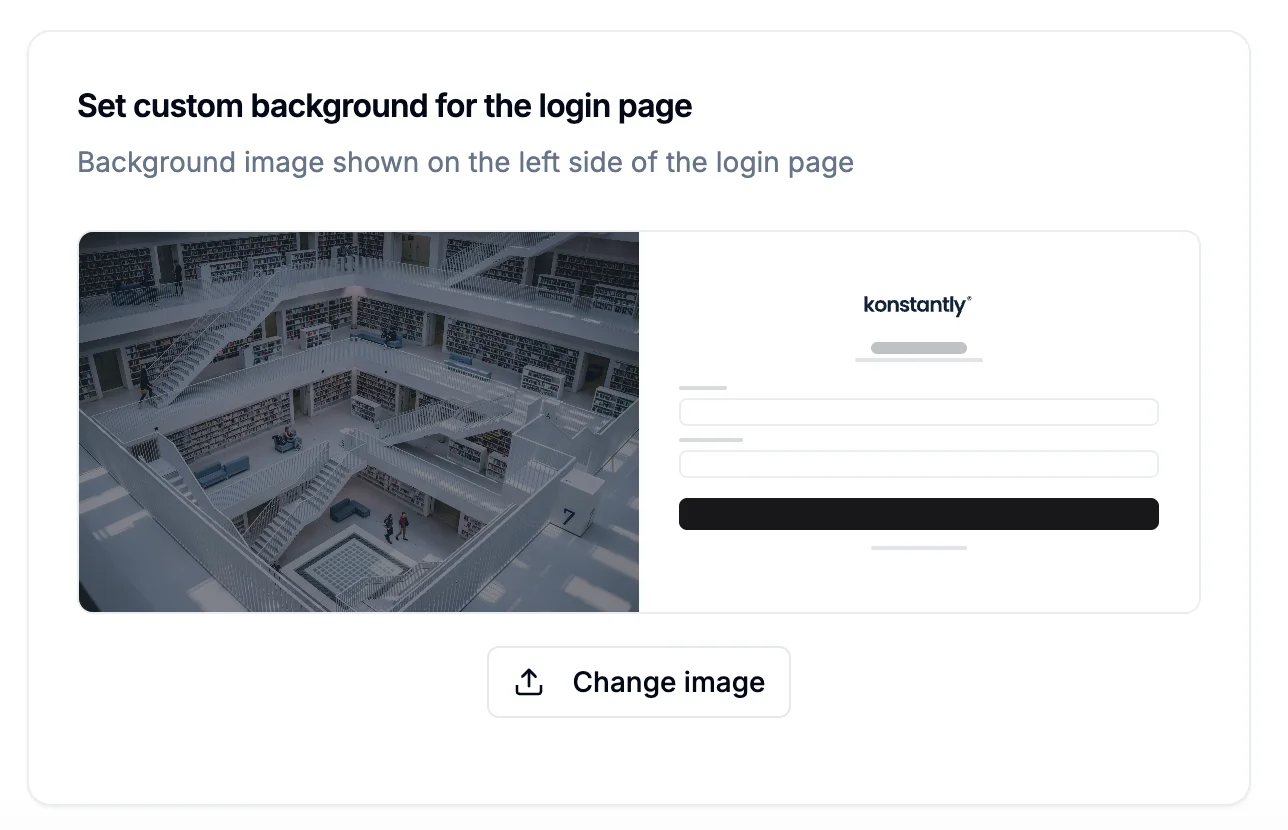
Background for the Login Page
To modify the background, simply click on "Change image" within the "Set custom background for the login page" section and choose the image file that contains your custom background.
Browser Tab Icon (Favicon)
The favicon is the small icon shown in browser tabs, bookmarks, and on mobile home screens when learners save your platform as a shortcut. Replacing it with your own brand mark makes the platform feel fully yours.
To upload a favicon, scroll to the Browser tab icon (favicon) card in the Branding settings and click Upload favicon.
Favicon Requirements:
- File format: PNG, ICO, or GIF (JPEG and SVG not accepted)
- Maximum file size: 256 KB
- Recommended dimensions: 32×32 pixels or larger (square)
- Square aspect ratio renders best across browsers and devices
The card includes a small browser-tab preview so you can see how the icon will look before saving. Once uploaded, the favicon swaps in your browser tab immediately – you may need to refresh other open tabs of the platform to see the change.
To revert to the default Konstantly favicon, click Remove on the favicon card.
Best Practices
- Consistent branding: Use the same logo and color scheme across all your learning materials
- Test visibility: Ensure your logo is clearly visible in both sidebar and login page contexts
- High-quality images: Use high-resolution images for backgrounds to maintain professional appearance
- Color contrast: Choose primary and secondary colors that provide good contrast for readability
- Brand guidelines: Follow your organization's brand guidelines for colors, logos, and visual elements
- Mobile responsiveness: Consider how your branding appears on different screen sizes
- File optimization: Compress large background images to improve loading times
Advanced Customization
For more extensive customization beyond the standard branding options, contact the Konstantly team to request:
- Custom tagline
- Custom page title
- Terminology overrides (e.g. renaming "Courses" to "Training" across the interface)
- Additional branding elements
- White-label solutions