The new Konstantly: start a course from a document, finish it in the new editors
Attach a PowerPoint, Word document or PDF, describe the course, and get a first draft that uses it as source material. Finish it in the rebuilt editors, with Ask beside your work.

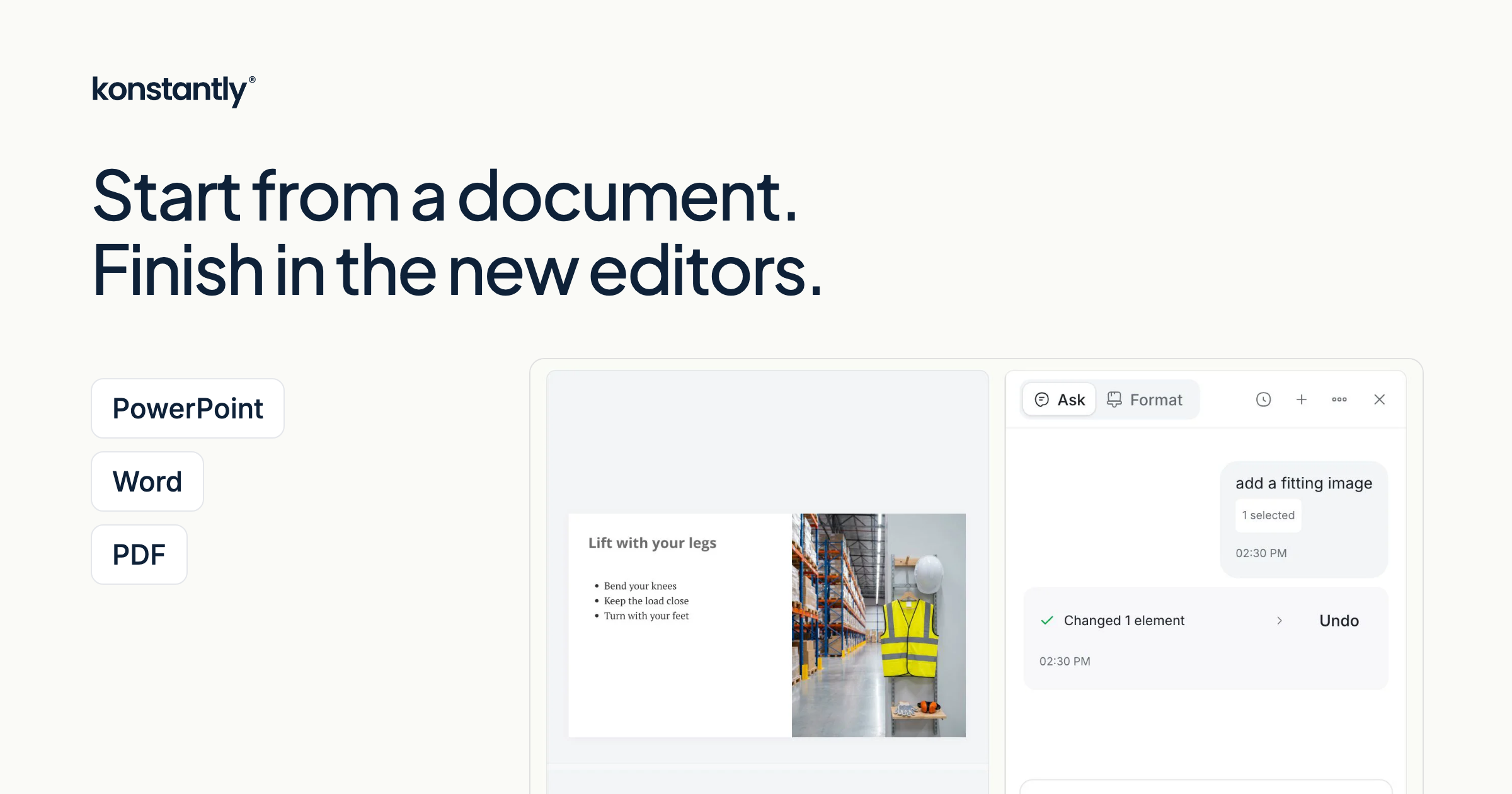
You can now start a course from a document you already have. Attach a PowerPoint, a Word document or a PDF on Home, say what the course is for, and Ask Konstantly drafts it as steps you can open. It is a first draft. Read it before you publish.
The rest of this release is about finishing that draft. The editors for lessons, tests, surveys and certificates have been rebuilt. Open a slide and change it yourself, or ask for the change and press Undo if you don't like it. Ask for test questions in plain words, read them, and add them to the test. Design a certificate and check it with a long name before anyone earns one.
If you already use Konstantly, there is nothing to turn on and nothing to migrate. Your courses open in the new editors exactly as you left them, and the whole app has a simpler look. The full list of what changed is in the changelog.
Start from a document
Home is a greeting and one box to type in. Attach a PowerPoint, a Word document or a PDF and describe the course you want. Ask Konstantly uses the most relevant parts of the file as source material for the draft. If a file can't be read, or is too large, Home says why.
When the draft is ready, Home replies with one sentence and the course it made, ready to open.
You can also start with no file and describe the course, as in this clip.
Describe the course; the outline comes back as steps you can open
More on what the assistant can do: AI course assistant.
A lesson editor that gets out of the way
Slides live in a strip along the bottom. The slide you are editing has the room. Open the grid view to see the whole lesson, select several slides, and move or delete them together.
Tools appear where you are working. Select text and its formatting floats beside it. Select a picture and you crop it right on the slide. With nothing selected, the side panel shows the slide's own settings: its layout, background and theme.
Layouts keep your content. Pick a different layout, such as two columns, a comparison, a quote, steps or a timeline, and the slide rearranges around the text and pictures already on it. You can try three layouts in a row and lose nothing.
Pick a layout; the slide rearranges and keeps what was on it
Ask, beside your work
The lesson, test and survey editors and the course builder each have an Ask panel. In the lesson editor it does three things.
- It works on what you selected. A small chip in the box names the target before you send anything: Slide 4, or "3 selected" when you have picked elements on the slide.
- It suggests a next step. Up to three short suggestions sit above the box, chosen from the state of the slide: make a title slide, suggest a layout, write speaker notes.
- Every change can be undone. An AI edit is one step in the editor's history. Press Undo and the slide is exactly as it was.
It can also read slides that were imported as pictures, so an old PowerPoint is something you can ask about, not just look at.
Ask changes the slide you are on, and Undo takes it back
A lesson that plays against a video opens in the same editor, with a Slides | Video switch.
See the editor in full: Page and lesson editor · Video lessons.
One frame for tests, surveys and certificates
Tests, surveys, certificates and course themes share one frame: the name and the save status across the top, your work in the middle, and one panel on the side, with tabs.
Tests and surveys
The questions are a list on the left. Add one by type, drag to reorder, or import questions from another test. Settings sit in the Settings tab of the side panel, so you can change attempts, time limit, passing score and question order while looking at the questions.
The Ask tab writes questions for you. Say what you need, for example "ten questions on fire safety". Read what comes back, then press Apply to add them to the test.
Ask for questions; Apply adds them to the test
More: Assessments · AI tests assistant.
Certificates
The certificate editor is new. Choose one of three designs (Modern, Formal or Minimal), then set your accent colour, the typeface, your logo, a signature and, if you like, your own background. The wording has its own tab.
The preview fills in a sample learner. Switch it to a long name, or to names in several scripts, and see that the text still fits before anyone earns one. Certificates you designed before are still there and still work, and certificates already issued keep the design they were issued with.
Choose a design, set the colour, check it with a long name
Courses that look finished from the first minute
The course page opens with a wide cover. Below it is what the course is about and what is in it, step by step. Authors also get a short list of next steps (build the course, add a cover, describe it for learners, assign it) that ticks itself off. Learners see their own progress, the step they are on, and their certificate once they earn it.
Covers. A course with no picture gets a drawn cover in its own colour, with a simple mark. Upload or pick a photo whenever you like and it takes over.
A simpler look
Training software tends to grow by addition. A new feature gets a new button, the button gets a panel, the panel gets a border, and one day the screen is mostly frames around other frames.
This release goes the other way. We went through Konstantly page by page and asked the same question of everything on it: does this help the person finish what they came to do? What didn't, we removed. What stayed got quieter.
Open any page and there is one dark button on it. On Courses it is Create. On a draft it is Publish. On your account's forms it is Save, and it turns dark only once you have changed something.
Lists are rows everywhere: courses, people, groups, reports and settings read the same way.
Smaller things you will notice
- The course builder starts as a list of steps; add branching when you need it.
- An imported PowerPoint or PDF lesson shows where it is: converting, ready, or failed, with the reason.
- Dates, numbers, averages and percentages follow your interface language everywhere.
- Dialogs behave the same everywhere, and focus goes back to where you were when one closes.
- Editors, lists and dialogs are easier to use with only a keyboard, and with a screen reader.
- On an overdue account, saving a new card tells you what happened to the payment.
What to do next
If you already use Konstantly: nothing. Sign in and it is all there. The changelog has the full list, and the knowledge base has been updated to match.
If you are new: start for free and build your first course, with a document you already have as its source material.
New plans and pricing arrive with this release; the pricing page has the details.