Creating Tests
Set up tests and quizzes with question pools and advanced settings
Creating Tests
Tests are one of the building blocks of your courses. Use them to ask the learner a number of questions to assess their understanding of the course material. Tests can be used in both simple and extended mode.
To add a test to a course, open the course in the course builder (choose Update first if it is published), click Add step and pick Test. Then open the test to fill it with questions.
The test editor has three parts: the list of questions on the left, the question you are editing in the middle, and a side panel with two tabs, Ask and Settings. The top bar shows the test's name, whether your changes are saved, and Preview.
Question Types
There are six question types you can use:
- Choice question: one correct answer, or several
- "Yes/No" question
- Sorting question
- Matching question
- Text reply question
- Text gap question
Surveys have their own set, which adds essay and matrix questions.
To add a question, click New question in the question list and pick a type. Clicking adds the question at the end of the test; dragging the type onto a question adds it right after that one. The new question opens in the middle of the screen. Fill it in and click Save question. Add another starts the next one of the same kind.
Once a question has been added, you can change its position within the test, or delete it.
To change the position of a question, drag its row up or down in the list. With a keyboard, press Space or Enter on the row's handle and use the arrow keys. To preview or delete a question, open the ⋯ menu on its row.
Writing Questions with Ask
You don't have to write every question yourself. Open the Ask tab in the side panel and say what you need, for example "Write ten questions on fire safety for new warehouse staff". Ask Konstantly drafts the questions and shows them to you first. Nothing is added to the test until you click Apply.
An empty test offers the same thing as a button: Ask Konstantly to write questions. Ask can make mistakes, so read the questions and the marked answers before you publish.
Assigning Tags
You can assign one or more tags to each question within a test. The percentage of correctly answered questions with each tag is tracked in statistics. You can, for example, tag all questions concerning a particular topic with a unique tag, then track what percentage of questions with a given tag is answered correctly. If questions with a particular tag demonstrate a consistently low rate of correct answers, it may indicate that the material is too hard, poorly explained, or that the questions are constructed incorrectly.
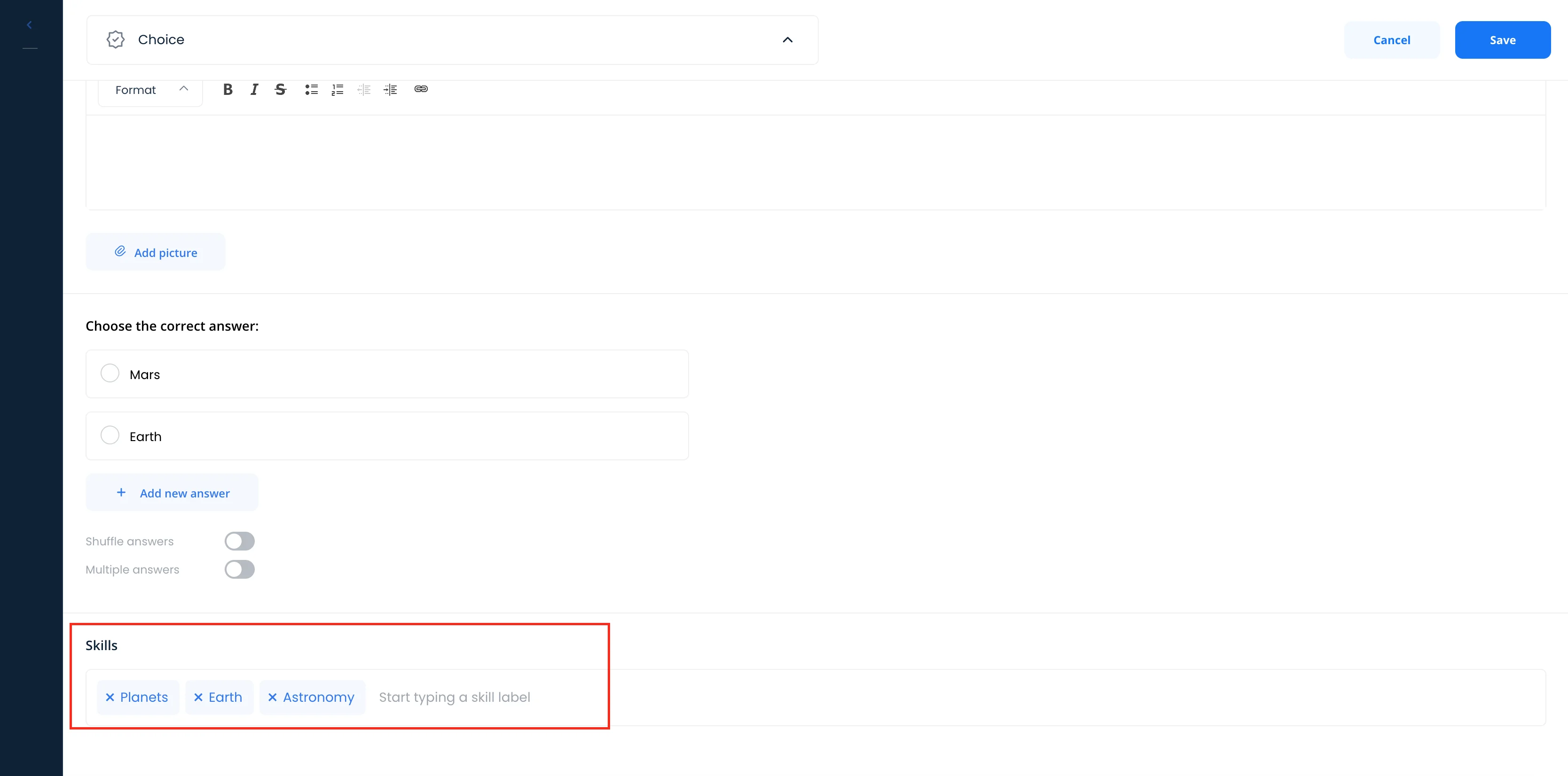
To assign tags to a question, open the question for editing, type the tag name in the Tags field, then press the Enter key. You can assign multiple tags to a single question.
To remove a tag from a question, open the question for editing, locate the tag you want to remove, and click the icon next to the tag's name.
Question Pools
It's a wise decision to reuse questions you once created. There are several scenarios when you can benefit from question pools:
- Make a final test that checks knowledge across several courses. In such case you simply pull few questions from each intermediate test and add those to the final assessment.
- Make an updated version of existing assessment. When a new process, product or a product version is out you may want to do a refresher on topics that you've covered in previous courses. That's where you can copy old assessments and adjust those to suit new circumstances.
- Slightly change assessment for another audience (e.g. add simple technical questions from technical training to sales onboarding training).
How to Copy Questions
Here is how you copy questions from existing tests:
- Create new test
- Click Import from another test at the foot of the question list:
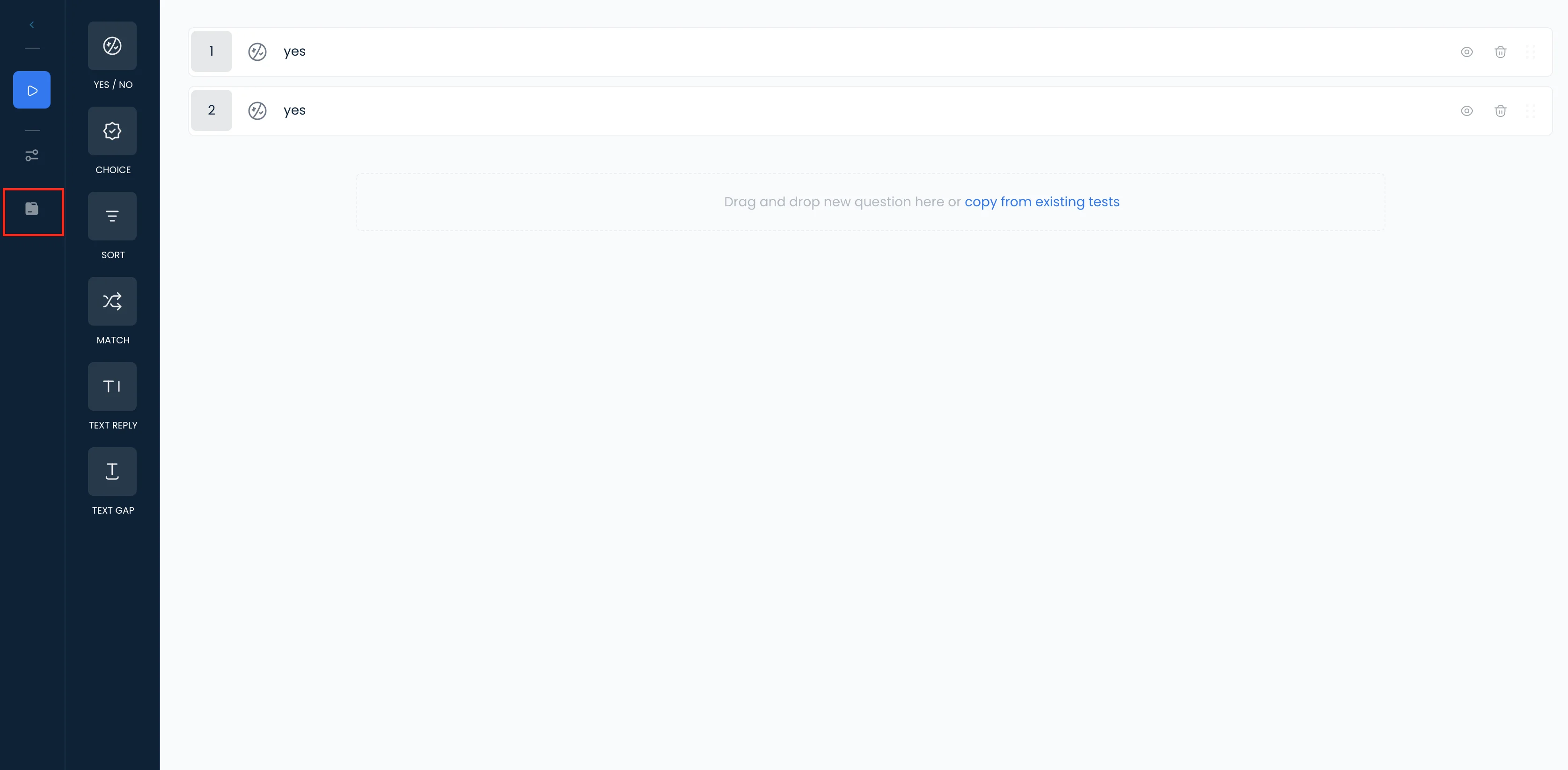
- In the dialog, search for the title of the test that contains questions you want to copy
- Choose the corresponding course and test
- Select questions you want to add to your new test:
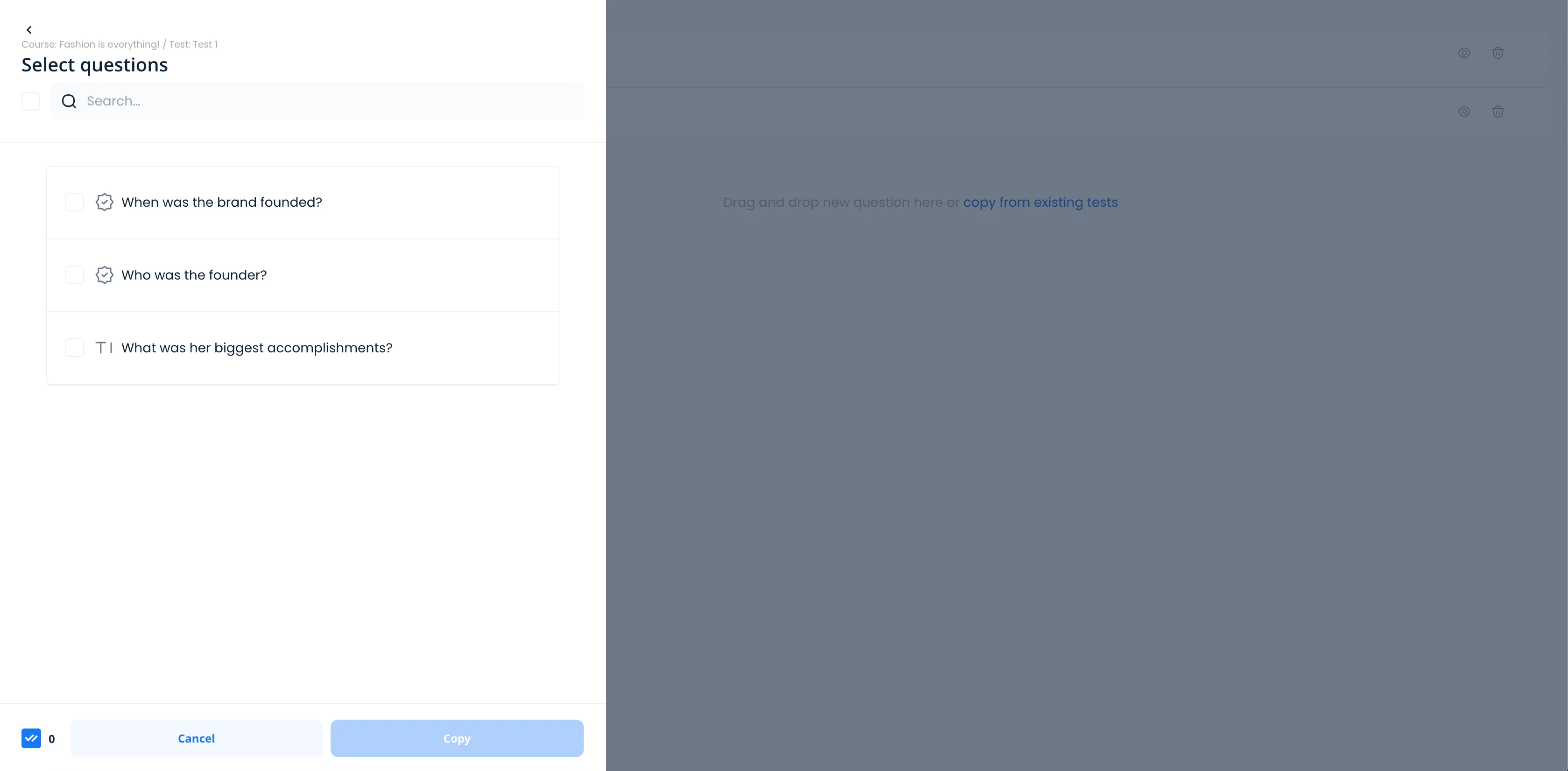
- Click Import Selected
Creating Question Variations
If you want to present different set of questions for different learners or even for different attempts, use these hints:
- Create excessive amount of questions by copying and slightly modifying basic set of questions
- Specify the number of questions to show during each attempt on the Settings tab:
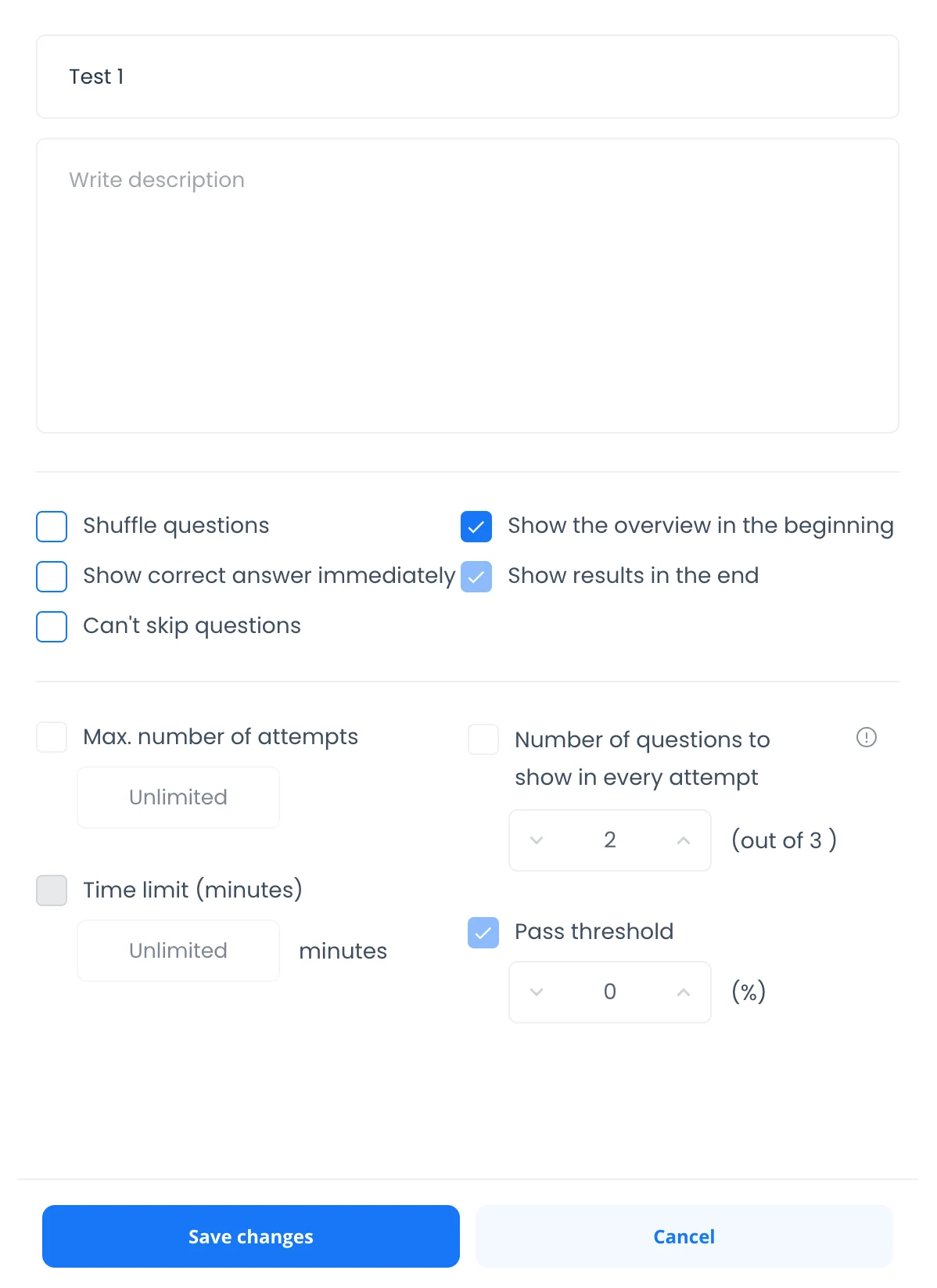
- Enable Shuffle questions option
Configuring Test Settings
Test settings live on the Settings tab of the side panel, next to Ask. The questions stay on screen while you change them.
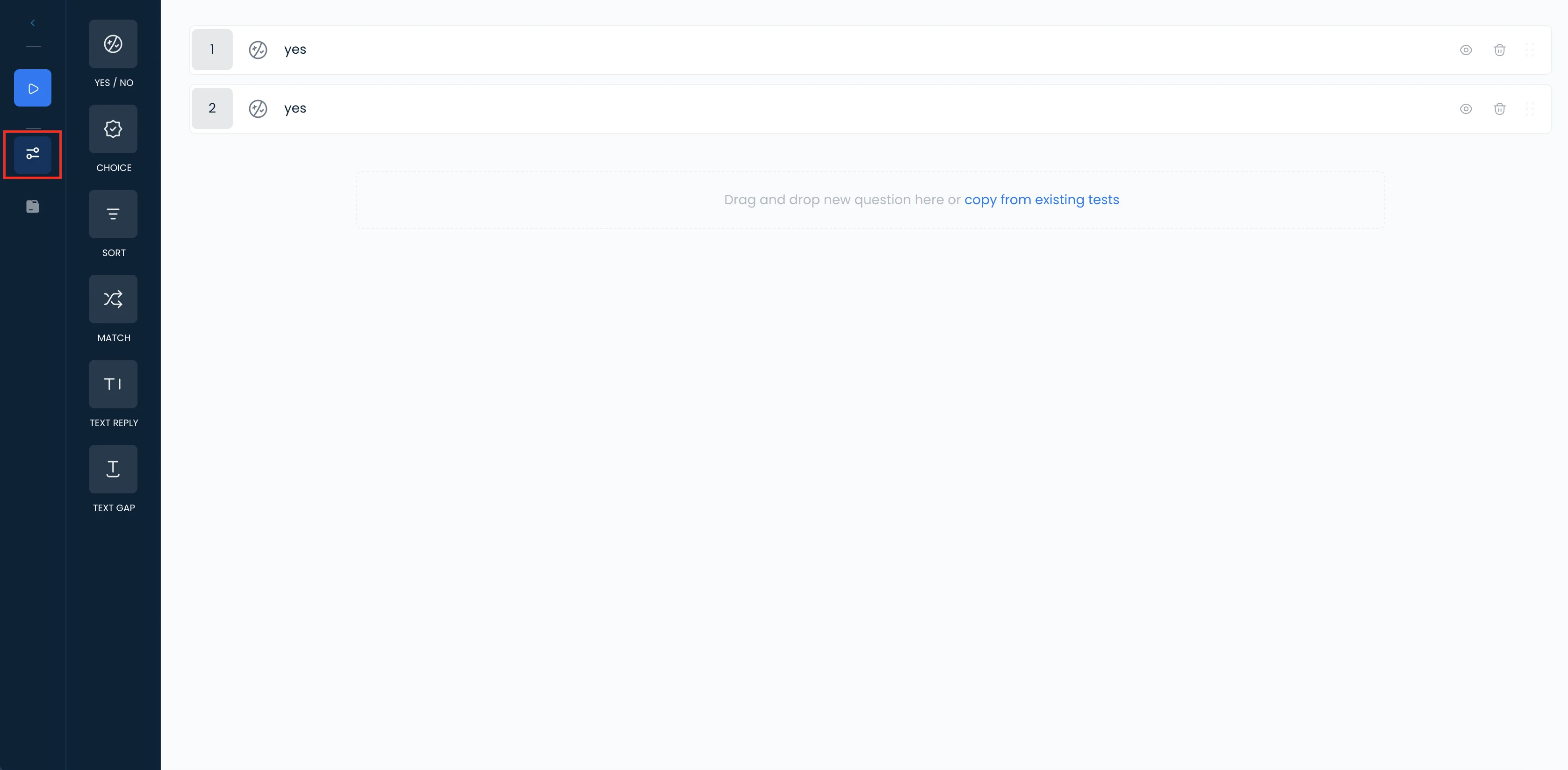
This enables you to do the following:
- Type in a title and description for the test. Both the title and the description are visible to learners who are about to take the test.
- Specify the maximum number of attempts. Learners who make the specified number of attempts and still fail to pass the test will be unable to take the test again.
- Specify a time limit. Learners who take longer than the specified amount of time to finish the test will have all unanswered questions marked as answered incorrectly.
- Enable question shuffling. This option makes it so that the questions within the test are presented in a random order.
- Forbid skipping questions. By default, learners can skip questions without answering them. Enabling this option will make it so that learners have to answer a question before seeing the next one.
- Specify the number of questions to show during each attempt in test settings
- Set the passing score. This value determines the percentage of questions in the test (from 0% to 100%) a learner has to answer correctly to pass the test.
Once you have finished configuring the settings, click Save settings. A time limit needs an attempts limit, so set the number of attempts first.
Previewing, Saving, and Exiting
When you have finished editing the test, it is time to see how it would look in the course.
To preview the test, click Preview in the top bar. To preview one question, open the ⋯ menu on its row.
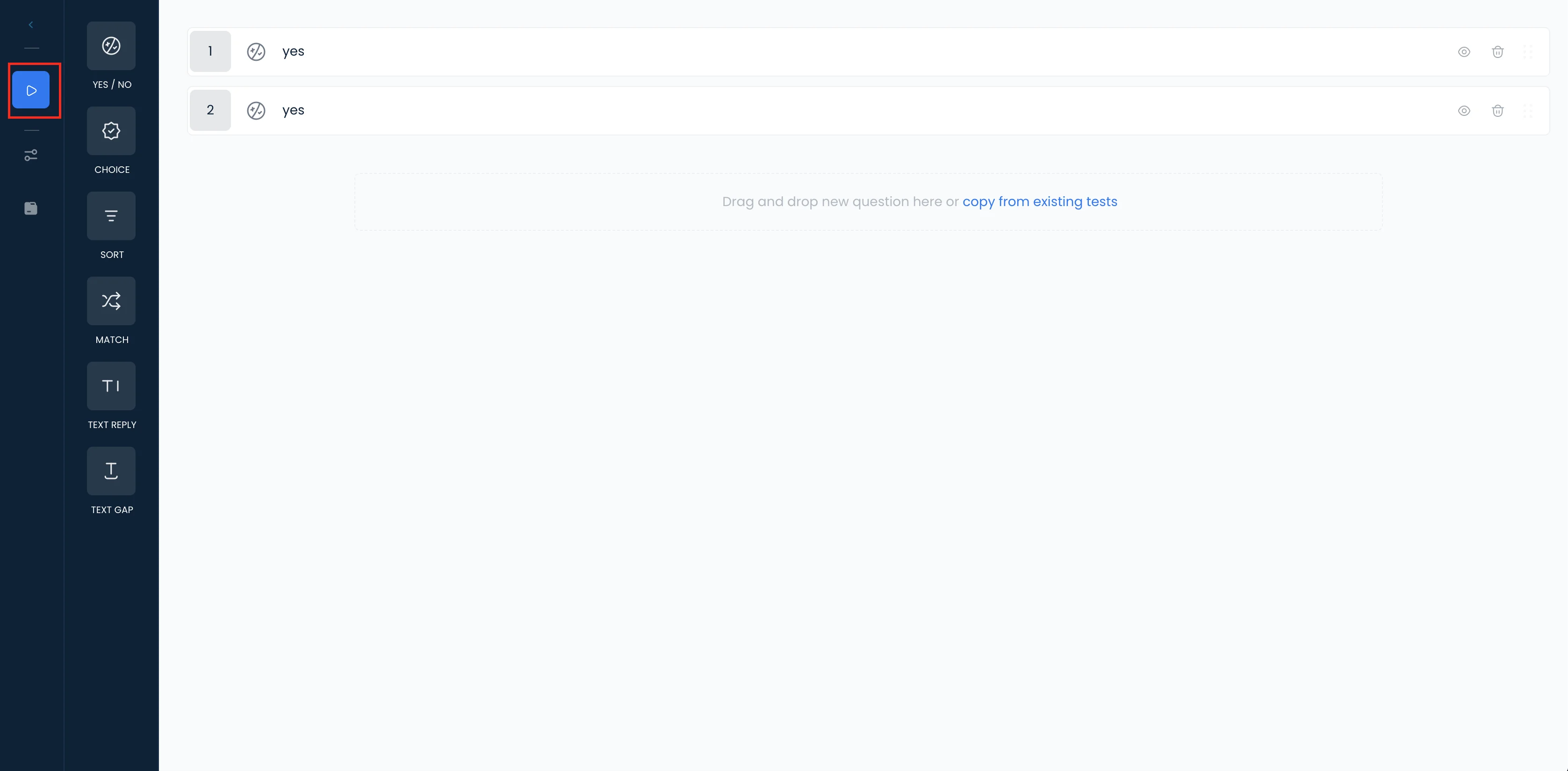
If you are satisfied with the test, it is time to exit the test editor.
To exit the test editor and return to the course builder, click the back arrow at the top left.
A question is saved when you click Save question, and settings when you click Save settings. The top bar tells you when something is not saved yet, and the editor asks before you leave with unsaved changes.
Related Topics
- Creating Questions - Learn about all available question types
- Creating Surveys - Gather feedback without scoring
- Expert-graded Assessments - Manual evaluation for complex tasks