User Statistics
Track individual user progress and performance
The learner leaderboard – 14s, no narration
Accessing User Statistics
To track the progress of a specific user, select the "Team" tab in the sidebar menu, choose the user whose results you want to see, and click on the "Statistics" tab.
Overall Statistics
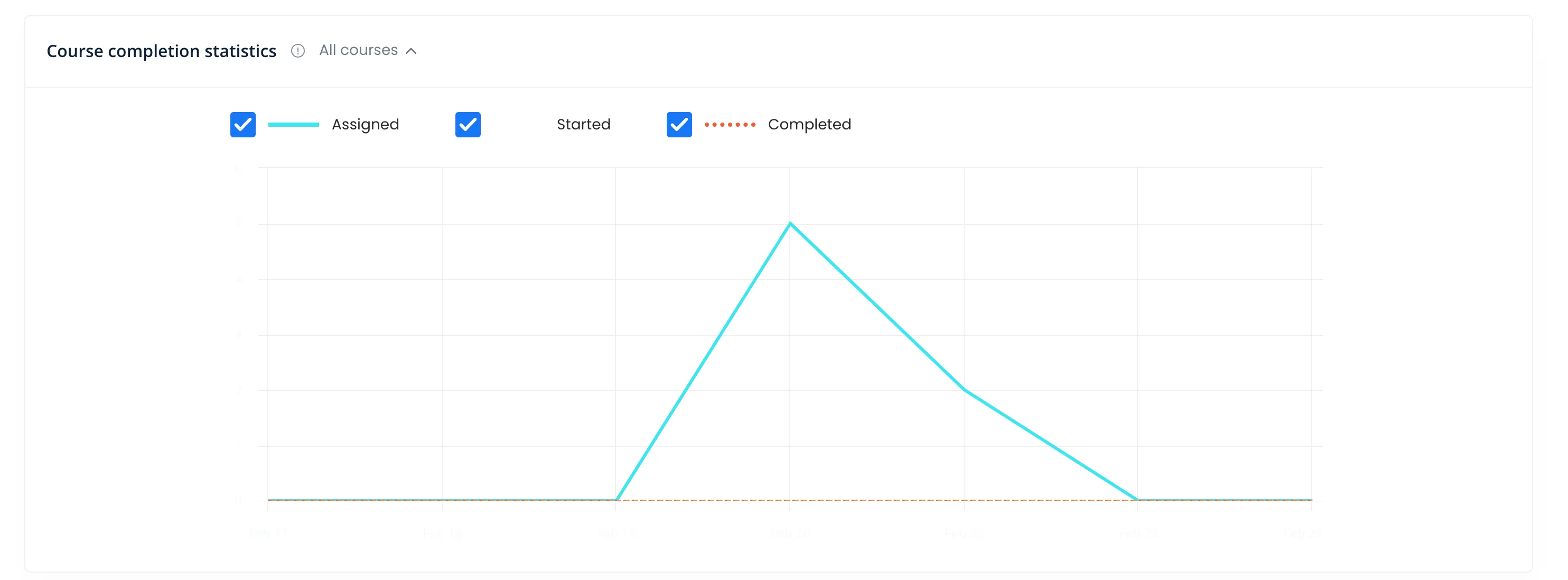
In this field, you will find indicators such as:
- Total number of assigned courses
- Completed courses
- Courses started
- Average result for all completed courses
Completed Courses
This graph will help you assess how well the user is performing in the assigned courses. It shows the average results of all courses completed by the user.
Unstarted Courses

This field will display a list of courses assigned to the user but not yet started by them.
Courses in Progress
In this section, you will see a list of courses that the user has not completed yet. Additionally, it displays:
- The progress percentage
- The remaining time until the deadline set by the course author
Completed/Reviewed Homework Assignments
Here, you will find all the homework assignments completed by the user, along with their grades.
Skills
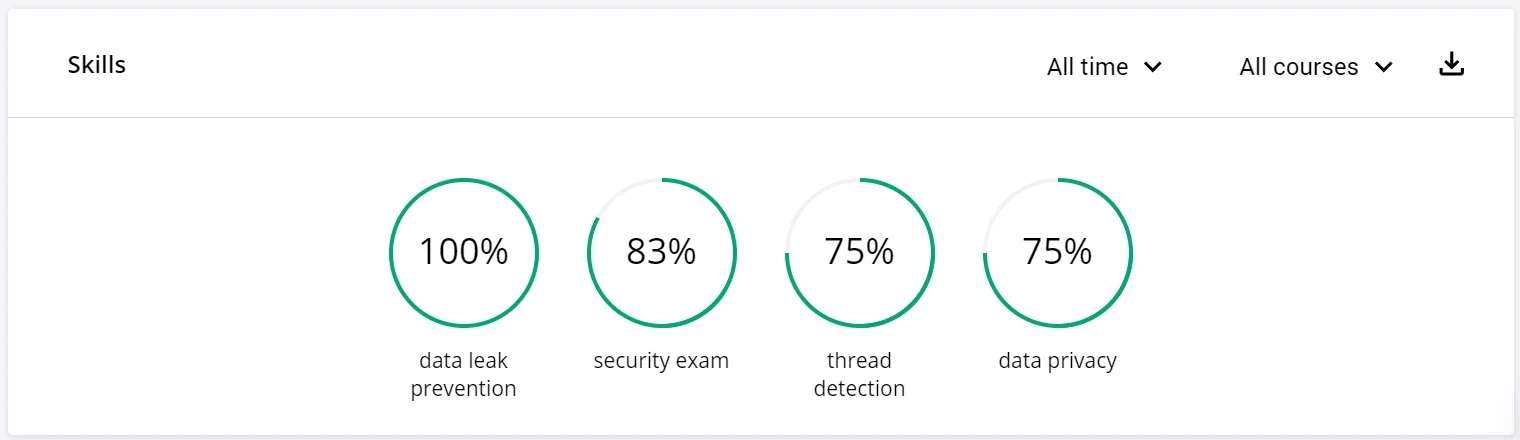
This section lists all the skills and knowledge that have been assessed by courses assigned to the user.
The percentage indicates the number of correct answers to questions related to a particular skill.
Best Practices
- Regular check-ins: Review user statistics periodically to identify those who need support
- Personalized feedback: Use individual performance data to provide targeted guidance
- Deadline management: Monitor courses in progress to ensure users stay on track
- Skills gap analysis: Use skills data to identify areas where users need additional training
- Recognize achievements: Acknowledge users with high completion rates and scores
- Address inactivity: Reach out to users with many unstarted courses to understand barriers
- Track trends: Compare user performance over time to measure growth
- Set individual goals: Work with users to establish personalized learning objectives